

You're learning a language with Lingopie on your phone or laptop, and it's going great. But hunching over a small screen gets old fast. The real edutainment happens when you're watching Spanish telenovelas or French thrillers on your actual TV, feet up, remote in hand, learning without feeling like you're studying.
The good news? Getting Lingopie on your TV isn't complicated, but the setup varies depending on what device you've got. Some smart TVs have native apps. Others need workarounds. This guide walks you through every method to watch Lingopie on TV, whether you've got a Samsung smart TV, an Apple TV setup, or you're working with Chromecast and hoping for the best.
- How To Use Lingopie: Step-by-Step Guide For Beginners
- How To Use Dual Subtitles To Accelerate Language Learning
- Best Language Learning Programs for 2026: Tools That Get Results

TL;DR
Lingopie TV works natively on Google TV and Android TV. For everything else (Samsung, Apple TV, Fire TV, Roku), you'll need workarounds like HDMI cables or casting from your phone. The app syncs your progress across devices automatically. Login takes about 30 seconds with a QR code.
How to Use Lingopie TV
First things first. You need an active Lingopie subscription. If you don't have one, sign up at the Lingopie website first and subscribe or sign up for a free 7-day trial. The TV app won't let you create an account from your couch.
Once you've got that sorted, here's how login works:
- Open the Lingopie app on your TV.
- Connect it to your Lingopie account by either:
- Scanning the QR code displayed on your TV, or visiting the website address shown on your TV.
- Enter the code that appears on your TV screen to complete the login.
Your progress syncs automatically across everything. Watch half an episode on your phone during lunch, finish it on your TV that night. All your saved vocab, subtitles you've clicked, and where you paused—it follows you. No manual syncing required.
Using Lingopie TV On Supported Devices
Lingopie TV has native apps for the platforms that matter. If your TV runs on Google TV, Android TV, Fire TV, or Roku TV, you're covered. Download the app from your device's store, and you're good to go.
Any smart TV using an Android interface with access to the Google Play Store also works. That includes brands like Sony Bravia, TCL, Hisense, Philips, and others running Android TV.
Samsung and Apple TV? Those need workarounds. We'll get to that.
Google TV and Android TV
Availability: Download Here
If you've got Google TV (like Chromecast with Google TV) or any Android TV, you're in good shape. Head to the Google Play Store on your TV and search for Lingopie. Download the app, open it, and you'll see a QR code on screen along with a website address and login code.
Pull out your phone and scan that QR code, or visit the website and enter the code manually. Your account connects instantly, and you're ready to start watching. The whole process takes maybe 30 seconds.
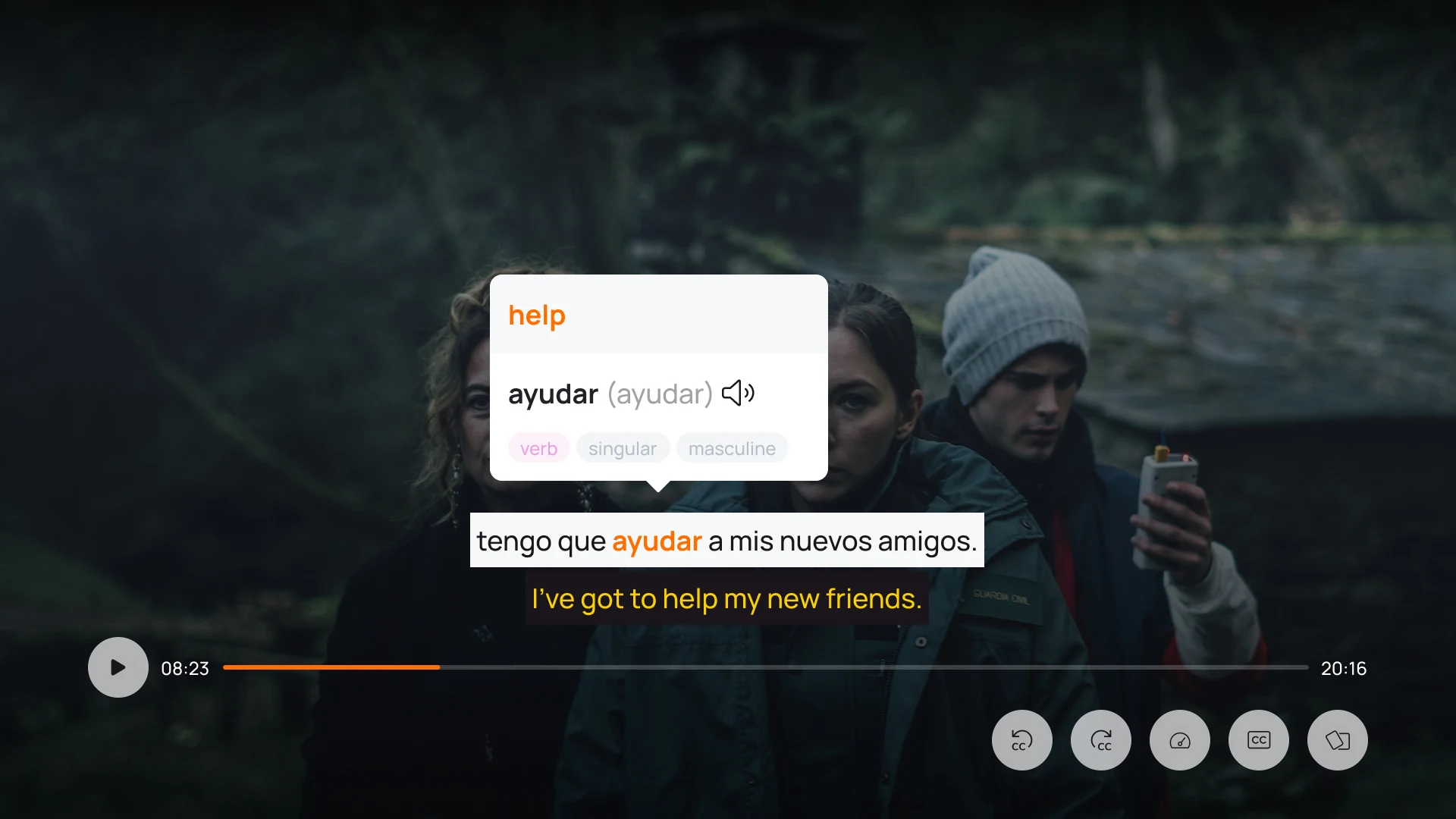
The app works well on these platforms. The interface is intuitive if you've used other streaming apps before. Subtitles are clear and clickable, which is the whole point of using Lingopie on TV instead of just watching regular Netflix. You tap a word with your remote, and the definition pops up right there.
Most Android TV brands run this setup smoothly. Sony Bravia, TCL, Hisense, Philips—if it's got the Google Play Store, it's got Lingopie. Performance is solid as long as your internet connection isn't terrible.
Fire TV
Availability: Download Here
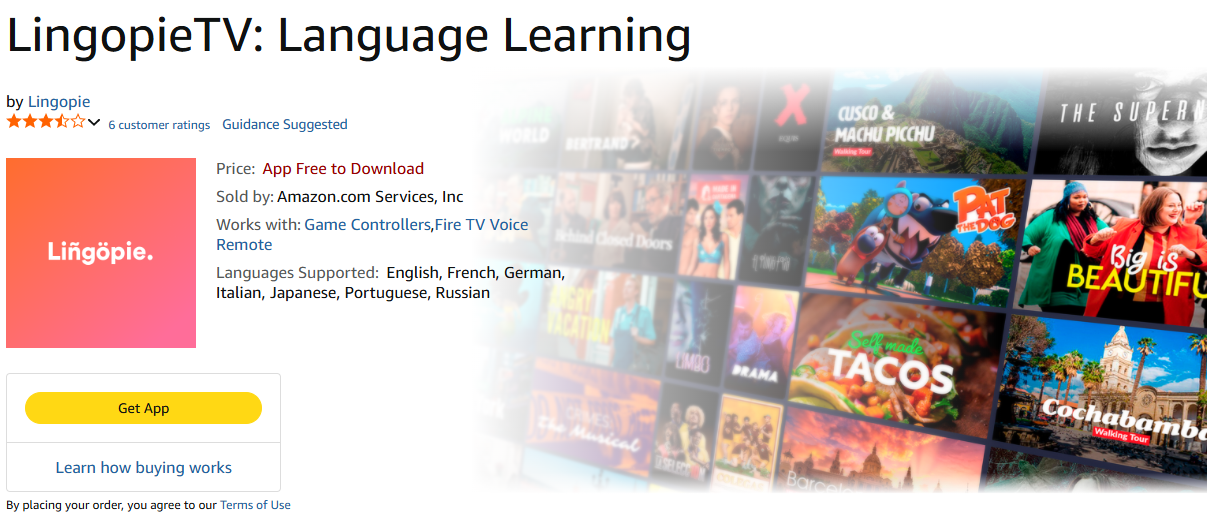
Amazon Fire TV users can grab Lingopie straight from the Amazon Appstore. Pick up your Fire TV remote and hit the search button (the magnifying glass icon). Type "Lingopie" and you'll see the app pop up. Select it and click download.
Once it's installed, open the app. You'll get the same QR code login screen as Google TV users. Scan it with your phone or visit lingopie.com/tv to enter the code manually. Your account syncs up immediately, and all your progress, saved vocab, and watch history appear on your TV.
If you've got a Fire TV Stick, Fire TV Stick 4K, or Fire TV Cube, the experience is basically identical across all of them.
Roku TV
Availability: Download Here
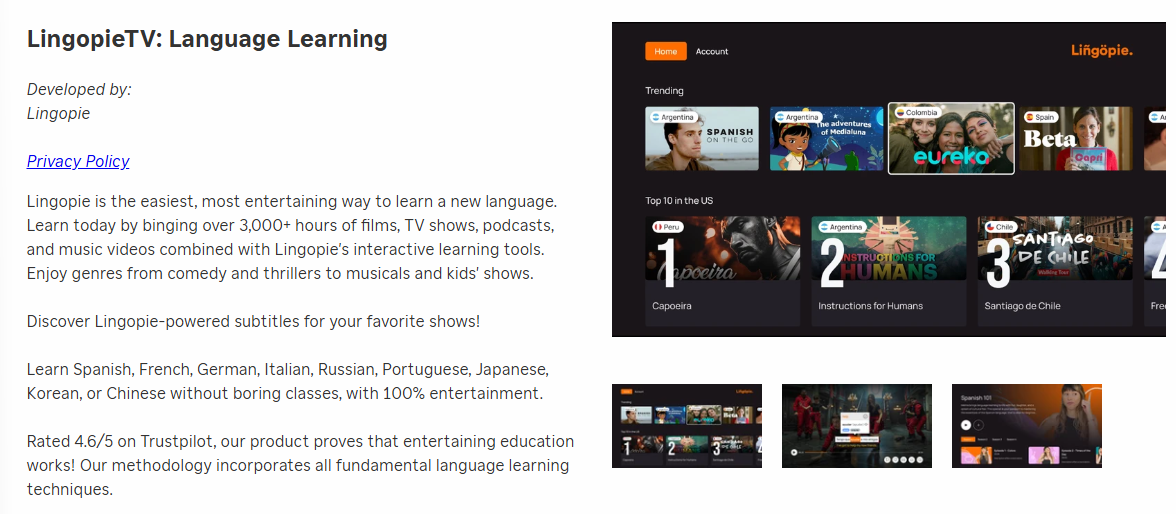
Roku TV users have access to Lingopie through the Roku Channel Store. Grab your Roku remote and navigate to "Streaming Channels" from the home screen. Search for "Lingopie" in the search bar, and you'll find the app. Add it to your channel lineup and let it download.
Open the Lingopie app once it's installed. Like the other platforms, you'll see a QR code appear along with a manual login option. Once logged in, your account connects right away, bringing all your shows, progress, and saved vocabulary to your Roku.
Device-Specific Workarounds
Samsung Smart TV
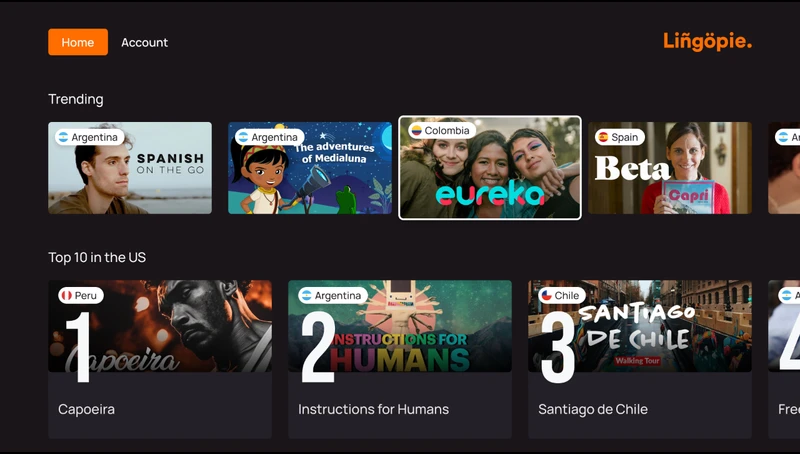
Samsung runs Tizen OS. Lingopie doesn't have a Tizen app. Your move? HDMI cable from your laptop. Pull up lingopie.com in your browser, connect the cable, switch your TV input to HDMI, and you're watching Lingopie on your Samsung TV.
You can also try casting if your Samsung supports AirPlay 2 (2019 models and newer). Go to Settings > General > Apple AirPlay Settings and turn it on.
Apple TV
Apple TV doesn't have the Lingopie app either. Again, HDMI is your friend. Connect your MacBook to your TV, open Safari or Chrome, load up Lingopie, and stream that way.
If you've got an iPhone or iPad, AirPlay works better here. Swipe down from the top right (or up from the bottom on older iPhones), tap Screen Mirroring, select your Apple TV. Open Lingopie on your phone and watch it on the big screen.
Troubleshooting Your Lingopie TV
Why won't the Lingopie TV app load?
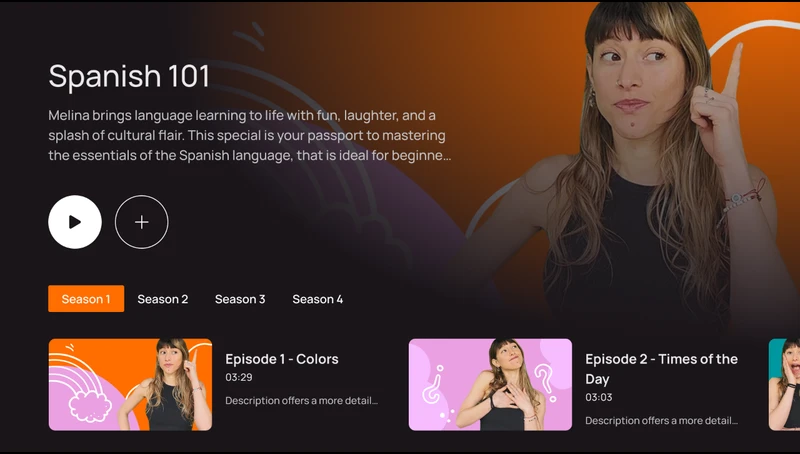
Close the app completely. Uninstall it, then reinstall from your device's store. Sounds basic, but it fixes most loading issues. If that doesn't work, check if your TV's software needs an update. Outdated firmware causes weird app behavior.
Why is Lingopie buffering or lagging on my TV?
Your internet speed matters here. Lingopie recommends at least 5 Mbps for smooth streaming. Run a speed test on your phone while standing near your TV. If you're getting less than that, your WiFi's the problem, not the app.
Try moving your router closer to your TV. Or connect your smart TV directly to your router with an ethernet cable if possible. Wired connections beat WiFi every time for streaming.
Why are the subtitles out of sync?
Close the episode and reopen it. That usually resyncs everything. If it keeps happening, make sure you're running the latest version of the Lingopie TV app. Updates often fix subtitle timing bugs.
Why won't the QR code scan?
Sometimes phone cameras struggle with TV screen glare. Dim your TV brightness a bit. Or just use the manual method. Visit lingopie.com/tv in your phone's browser and enter the code shown on your TV screen.
Why does the audio keep cutting out?
Check your TV's audio settings first. Some smart TVs have audio processing features that mess with streaming apps. Turn off any "virtual surround" or "audio enhancement" settings and test again.
Why can't I find the Lingopie app on my TV?
Make sure your device is actually supported. The Lingopie TV app works on Google TV, Android TV, Fire TV, and Roku TV. If you've got a Samsung TV or Apple TV, you'll need the HDMI or casting workarounds mentioned earlier.
Ready To Watch With Lingopie TV?
Getting Lingopie on TV depends on what device you've got. Google TV, Android TV, Fire TV, and Roku users can download the native app and start watching in minutes. Samsung and Apple TV owners need to get creative with HDMI cables or casting.
The setup takes longer for some devices than others, but once you're watching a Korean drama or Italian crime show on your big screen with interactive subtitles, you'll forget about the hassle. Your couch is now your classroom. Way better than squinting at your phone.
FAQ
Is Lingopie on smart TV free?
No. You need an active Lingopie subscription. The TV app is included with your membership, but you can't use it without paying for the service first. Sign up at lingopie.com if you haven't already.
Does Lingopie work on Apple TV?
Not natively. There's no Lingopie Apple TV app yet. You can use AirPlay to mirror from your iPhone or iPad, or connect your MacBook with an HDMI cable. Both methods get Lingopie on your TV, just not through a dedicated Apple TV app.
How do I get Lingopie on Samsung TV?
Samsung smart TVs don't have the Lingopie app because they run Tizen OS instead of Android. Your options are HDMI from a laptop or AirPlay from an iPhone (if your Samsung supports it). Check if your Samsung has AirPlay 2 in the settings.
Can I watch Lingopie on multiple TVs?
Yes. Your subscription works across all your devices. Install the Lingopie TV app on each smart TV, log in with your account, and you're set. Your progress syncs automatically between them.
Does the Lingopie TV app have all the same content?
Almost. The TV app has the full Lingopie catalog of shows and movies. Kids and Music catalogs are coming soon, but aren't available on TV yet. Everything else you see on desktop or mobile shows up on your TV.
Why isn't my progress syncing?
Make sure you're logged into the same account on all devices. If you've got multiple Lingopie accounts (maybe you started a trial, then paid for another), that'll mess with syncing. Check which email you used to log in on each device.
Can I download shows to watch offline on TV?
No. The Lingopie TV app streams content. You can't download episodes for offline viewing like you can on mobile. You need an internet connection to watch.
What internet speed do I need?
At least 5 Mbps for standard definition. 10 Mbps or higher if you want HD without buffering. Most home internet plans handle this fine, but slow WiFi can cause problems even if your plan is fast enough.

![What is Lingopie? Complete Platform Guide [2026]](/blog/content/images/2026/01/What-is-Lingopie.jpg)


![Is Lingopie Free? Plans, Pricing & Free Trial Guide [2026]](/blog/content/images/size/w300/2026/01/Is-Lingopie-Free.jpg)
![How To Gift Lingopie: One-Year vs Lifetime Subscription [GUIDE]](/blog/content/images/size/w300/2026/01/lingopie-gift-subscription.jpg)
)