

Trying to log in and just want it to work—fast? You’re in the right place. This quick, no‑fluff guide shows you exactly how to log in to Lingopie, reset your password if you’re stuck, and fix common Lingopie login problems.
Whether you’re signing in on the website or the app, you’ll find the simplest way to access your Lingopie account below. Let's begin!
- Is Lingopie Free? Plans, Pricing & Free Trial Guide [2026]
- What is Lingopie? Complete Platform Guide
- How To Watch Lingopie on TV (Devices + Workarounds)

Lingopie Login: Quick Access
In a hurry? If you’re just here to sign in and get back to learning, use the official login link below.
Official Lingopie login page: www.lingopie.com/app/login
This is the official Lingopie.com login page. If you’re looking for “Lingopie login,” “Lingopie sign in,” or “www.lingopie.com login,” this is the correct place to access your account.
How to Log In to Your Lingopie Account
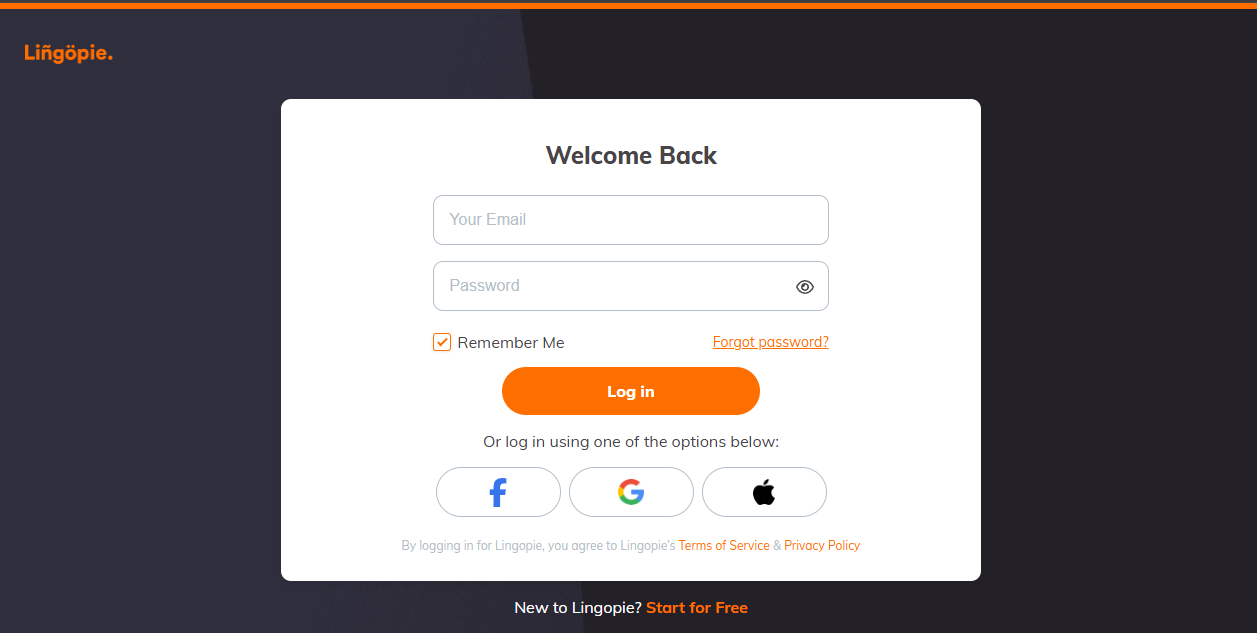
To log in to your Lingopie account using your email and password:
- Go to www.lingopie.com/app/login or click Login at the top right of Lingopie.com.
- Enter the email address you used when signing up.
- Enter your password.
- Click Sign In.
That’s it. You’re now logged in to Lingopie and ready to continue learning—no extra steps, no fuss.
Log In to Lingopie with Google
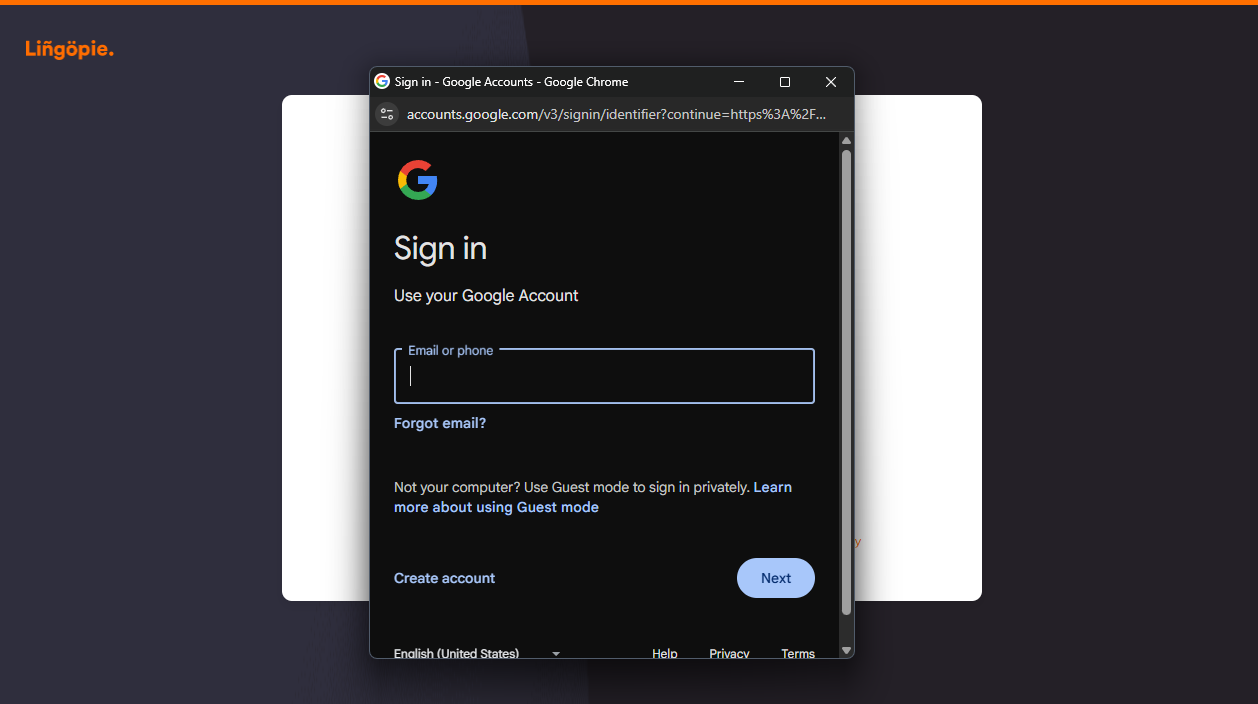
If you registered using Google:
- Go to the Lingopie login page.
- Click Continue with Google.
- Select the same Google email you used during sign-up.
If the wrong Google email is selected and you can’t log in to Lingopie:
- Clear your browser cache.
- Try again and select the correct Google account.
Log In to Lingopie with Apple
If you signed up using Sign in with Apple:
- Open the Lingopie app or go to the Lingopie login page.
- Click Continue with Apple.
- Follow the on-screen steps to sign in.
Important notes for Apple login (this trips people up a lot):
- Your Lingopie account may be linked to an Apple relay email such as abc123@privaterelay.appleid.com.
- Do not type this email manually. Always use Continue with Apple to log in.
Log In to Lingopie with Facebook
If you registered using Facebook:
- Go to the Lingopie login page.
- Click Continue with Facebook.
- Select the same Facebook account you used when signing up.
When the correct Facebook account is selected, login is automatic.
Logging In on the Lingopie App vs Website
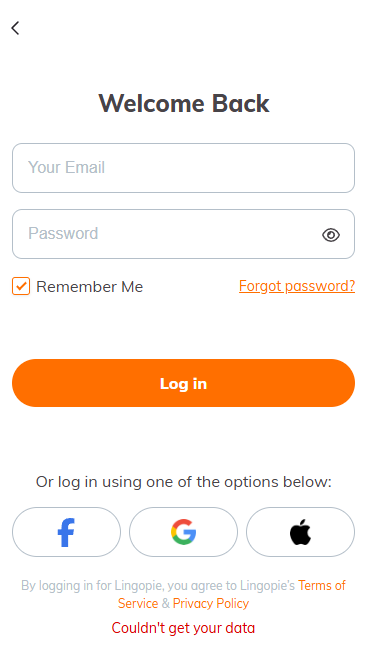
You can use the same login Lingopie details on both the app and the website.
- If you signed up with email and password, use the same details on web and app.
- If you signed up with Google, Apple, or Facebook, use the same login method on all devices.
If you can’t log in to Lingopie on the app but the website works (or vice versa), it’s almost always because a different login method was used at sign‑up. It’s a super common mix‑up.
How to Find Your Apple Relay Email
If you need to check which email Apple used for your Lingopie account:
- Go to Settings → [Your Name] → Sign in with Apple.
- Select Lingopie.
- Your Apple email (hidden or real) will be displayed.
If you’d like to switch to a different email or log in without Apple, just contact Lingopie support. The team can update your account for you—no need to start over.
Forgot Your Lingopie Password?
If you forgot your Lingopie password:
- Go to the Lingopie login page.
- Click Forgot your password?
- Enter your email address.
- Check your inbox (and spam or junk folder) for the reset email.
- Follow the instructions to set a new password.
If the reset email doesn’t arrive within a few minutes:
- Double-check that you entered the correct email.
- Check your spam or promotions folder.
- Try requesting the reset again.
Still Can’t Log In? Contact Lingopie Support
If you’re still having trouble logging in to your Lingopie account, our support team is here to help.
When contacting Lingopie customer service or Lingopie support, include:
- The email linked to your Lingopie account
- Your device and browser
- The login method you’re using (email, Google, Apple, or Facebook)
- Any error message you see
This helps the team resolve your Lingopie login issue faster.
Get Back to Learning with Lingopie
Once you’re signed in, you’re right back where you left off—your shows, your vocabulary, your progress, all waiting for you.
Once you’re logged in to Lingopie, you can start watching shows, building vocabulary, and learning languages through real‑world content—just like you would naturally, not from dry textbooks.
- Resume learning where you left off
- Explore new shows and lessons
- Start a free trial if you’re new
Lingopie Login FAQ
How do I log in to my Lingopie account?
Go to www.lingopie.com/app/login, enter your email and password, or use Google, Apple, or Facebook if that’s how you signed up.
Where is the official Lingopie login page?
The official Lingopie login page is www.lingopie.com/app/login .
Why can’t I log in to Lingopie?
Most Lingopie account login problems happen because of the wrong email, password, or login method. Try clearing your cache and make sure you’re using the same method you used at sign-up.
What if I forgot my Lingopie password?
Click “Forgot your password?” on the Lingopie login page and follow the reset instructions sent to your email.
Can I log in to Lingopie with Google, Apple, or Facebook?
Yes. You can sign in to Lingopie using Google, Apple, or Facebook if that’s how you created your account.
Is the Lingopie login the same on the app and the website?
Yes. The same Lingopie account login works on both the app and the website, as long as you use the same login method.





![Is Lingopie Free? Plans, Pricing & Free Trial Guide [2026]](/blog/content/images/size/w300/2026/01/Is-Lingopie-Free.jpg)
![How To Gift Lingopie: One-Year vs Lifetime Subscription [GUIDE]](/blog/content/images/size/w300/2026/01/lingopie-gift-subscription.jpg)
